Infomatrix Firmware Update Guide
Important: After firmware update, your previous settings may be reset. You will need to reconfigure your device settings (Wi‑Fi, preferences, license, etc.) before use.
Visit: license.infomatrix3d.com for license key generation.
Visit: license.infomatrix3d.com for license key generation.
Option 1: OTA Update
For firmware version 1.9+, you can update directly over Wi‑Fi:
- Download the latest firmware from HERE.
-
Visit the device URL:
http://IP-address/update.
User: admin
Pass: Device-ID
Example URL:http://192.168.0.10/update. -
Choose OTA Mode: Firmware → Click Select file and choose the downloaded
firmware.bin→ Starts updating.. -
Choose OTA Mode: LittleFS → Click Select file and choose the downloaded
filesystem.bin→ Starts updating.
Option 2: Manual Flash
Prerequisites
- A PC or laptop with a USB port.
- A standard USB data cable.
- An appropriate screwdriver.
Step 1: Access the Hardware
- Locate the side of the device cover that displays the “Infomatrix” label.
- Using a screwdriver, carefully remove the screws securing that one side of the cover. [usually right side facing back]
- Remove the cover to expose the internal components.
- Locate the microcontroller’s USB port [COM] inside the device.
- Disconnect the power cable and Connect the controller to your PC using the USB cable.
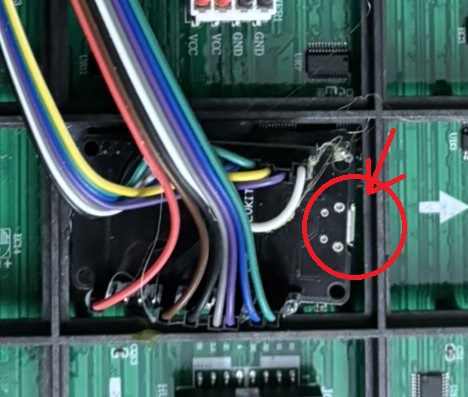
Step 2: Prepare to Flash — Firmware Upgrade
- Open a web browser on your PC (Google Chrome or Edge).
- Navigate to: Infomatrix Web Flash.
- Select your Infomatrix device model and desired version from the dropdown menu.
- Click the “Flash” button.
- A system pop‑up window will appear asking you to select a connection port.
- Identify the correct COM Port associated with your connected device.
- Select the port and click “Connect” and “Install” to begin the process.
Step 3: Completion
- Wait for the installation process to complete. This typically takes 1–2 minutes.
- Once finished, your device will automatically reboot.
- Unplug the USB cable and reinstall the cover, ensuring the screws are not overtightened.